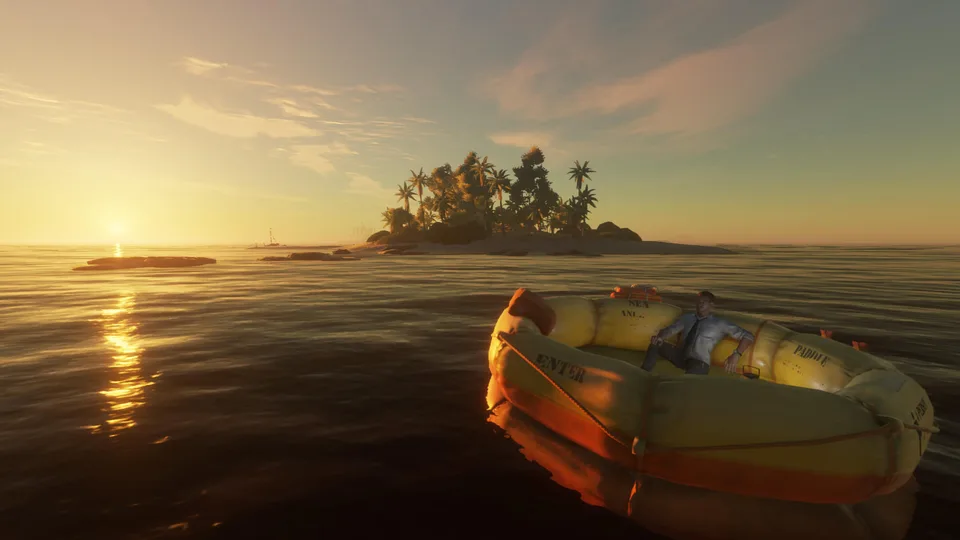
Stranded Deep Steam Deck Performance and Setup Guide
Discover optimal settings, community performance insights, and controller tips for playing Stranded Deep on Steam Deck. Get started today!
Published: Stranded Deep Wiki Editorial Team
Table of Contents
Understanding Stranded Deep on Steam Deck
Surviving a plane crash on a remote Pacific island has captivated survival enthusiasts for years, but taking that open-world experience on the go changes the entire dynamic. For players diving into stranded deep steam deck sessions, mastering the hardware compatibility and control scheme is essential for long-term survival. Whether you are tweaking graphics profiles for smoother framerates or dealing with unique input quirks, preparing your handheld device correctly ensures a seamless adventure.
When evaluating how well survival titles transition to handheld hardware, stranded deep steam deck performance remains a frequent topic of interest within portable gaming communities. Finding the right balance between graphical fidelity and battery life can make or break your immersion when exploring uncharted archipelagos, crafting shelter, and fending off marine predators.
Optimal Graphics Settings for Handheld Survival
Configuring your visual options correctly ensures stable performance during intensive building and crafting sequences. According to recent hardware testing using SteamOS 3.7 on OLED models, utilizing Proton Experimental yields stable results. However, users must fine-tune individual graphic parameters to avoid stuttering during high-action moments like shark encounters or island navigation.
Display & Resolution
Set resolution to 800p with full screen enabled. Use the natural color profile and disable V-Sync and motion blur to keep inputs snappy and responsive.
Environment & Textures
Maintain a field of view at 60 with medium view distance. Keep water quality, textures, and shadows on medium while setting grass to automatic and clouds to low for optimal frame pacing.
The following benchmark comparison illustrates how different graphical settings impact visual clarity and system overhead on the handheld platform:
Graphic Parameter
Recommended Setting
Performance Impact
Visual Quality Trade-off
Resolution
800p Full Screen
Minimal
Sharp handheld native display
View Distance
Medium
Moderate
Balanced horizon rendering
Water Quality
Medium
High
Realistic ocean physics without heavy lag
Grass Density
Automatic
Low-Moderate
Clean terrain visibility
Cloud Detail
Low
Minimal
Maximizes GPU headroom
Navigating Controls and Input Quirks
One of the primary challenges reported by portable players involves managing user inputs. Based on a community report from Steam Discussions, initial game startup requires pressing the enter key, which can feel unintuitive on a handheld device without an external keyboard attached. Furthermore, radial menus and movement mechanics occasionally emulate mouse behavior rather than native gamepad inputs, creating a slightly clunky feel compared to dedicated console ports.
Access your Steam game settings prior to launching the application.
Navigate to the general controller configuration menu to ensure Steam correctly detects your gamepad layout.
Adjust stick sensitivity and deadzones if aiming or radial menu selection feels imprecise.
Launch the application and use touch gestures or key bindings to bypass startup prompts efficiently.
To further clarify how input devices behave across different platforms, consider the following breakdown of control handling based on player experiences:
Input Method
Setup Requirements
Responsiveness
Common Issues
Handheld Built-in Controls
Steam Input configuration
Moderate
Radial menus acting like mouse pointers
External USB Gamepad
Plug and play via USB
Good
Stick movement sometimes registered as 8-directional
Keyboard and Mouse
Direct connection
Excellent
Requires external peripherals, less portable
Crafting and Survival Strategy Tips
Surviving the elements requires careful resource management, especially when adapting to handheld screen sizes and control limitations. Establishing a reliable water still, securing a spear for fishing, and building a secure shelter on day one will drastically improve your survival odds.
Tip
Always map quick-access inventory slots to your back paddles if you are playing stranded deep steam deck builds. This minimizes the need to navigate clunky radial menus during dangerous encounters with wildlife.
According to player experience reports, managing your hydration and caloric intake is much harder when wrestling with imperfect UI scaling. Take advantage of community-shared controller layouts in the Steam Community Hub to find custom community profiles that remap cumbersome keyboard shortcuts onto easily accessible buttons. For official game details and community hubs, visit the official Stranded Deep Steam Store Page.
Frequently Asked Questions
Does Stranded Deep require special compatibility layers on Steam Deck?
Yes, running stranded deep steam deck sessions smoothly typically requires utilizing Proton Experimental under SteamOS to ensure proper initialization and stable frame pacing.
How can I fix clunky menu navigation with controllers?
According to player experience reports, checking your general Steam controller settings and applying community-voted controller layouts can significantly improve radial menu responsiveness.
Are graphics settings adjustable for better battery life?
Absolutely. Lowering cloud detail, setting grass to automatic, and reducing view distance will conserve battery power while maintaining a steady framerate during exploration.
Can I play Stranded Deep offline on my handheld device?
Yes, once the game files and Proton compatibility tools are fully downloaded and updated while online, single-player survival sessions run perfectly offline.